
Updated · 2026-11-09
Using SpareEye
What is SpareEye?
SpareEye (SE) uses one device as a camera and another as a viewer. Join the same Wi-Fi network that allows devices to communicate, or share a hotspot from one device and join it from the other. No account is needed. Media goes directly between paired devices, without cloud storage or our own remote media server, avoiding a cloud round trip. Actual delay depends on your devices and network. Ads, payments, support and usage analytics when enabled use separate internet connections.
Supported devices
| Device | Minimum requirements and limits |
|---|---|
| Android phones/tablets | Android 7.0 or later (API 24). There is no single oldest model across brands. OS, camera and network capabilities must qualify; Google Play determines installation eligibility. |
| iPhone/iPad | The current candidate requires iOS/iPadOS 16.4 or later. Oldest supported families: iPhone 8/8 Plus/X (SE: 2nd generation or later), iPad 5th generation, iPad mini 5th generation, iPad Air 3rd generation and all iPad Pro generations, updated to 16.4 or later. iPhone 6s, 7 and first-generation SE on iOS 15 are currently unsupported. |
| Mac | Apple silicon (M1 or later), using the iPad app from the Mac App Store. The system baseline corresponding to the current iOS 16.4 candidate is macOS Ventura 13.3 or later. Apple calculates requirements from the build; follow the store if it requires a higher version. Intel Macs are unsupported. There is no Windows app or browser viewer; this website provides documents only. |
| Requirements | The camera device needs a working camera; audio/talkback needs microphones. Both devices need a reachable Wi-Fi or hotspot connection. Meeting the minimum OS does not mean every older device will run smoothly for long sessions. Test video, heat and connection first; store regional and compatibility limits still apply. |
First-time setup
Join the same network
1. Install the official SpareEye on both devices and join the same Wi-Fi or your own hotspot; guest isolation can block communication even with the same network name.
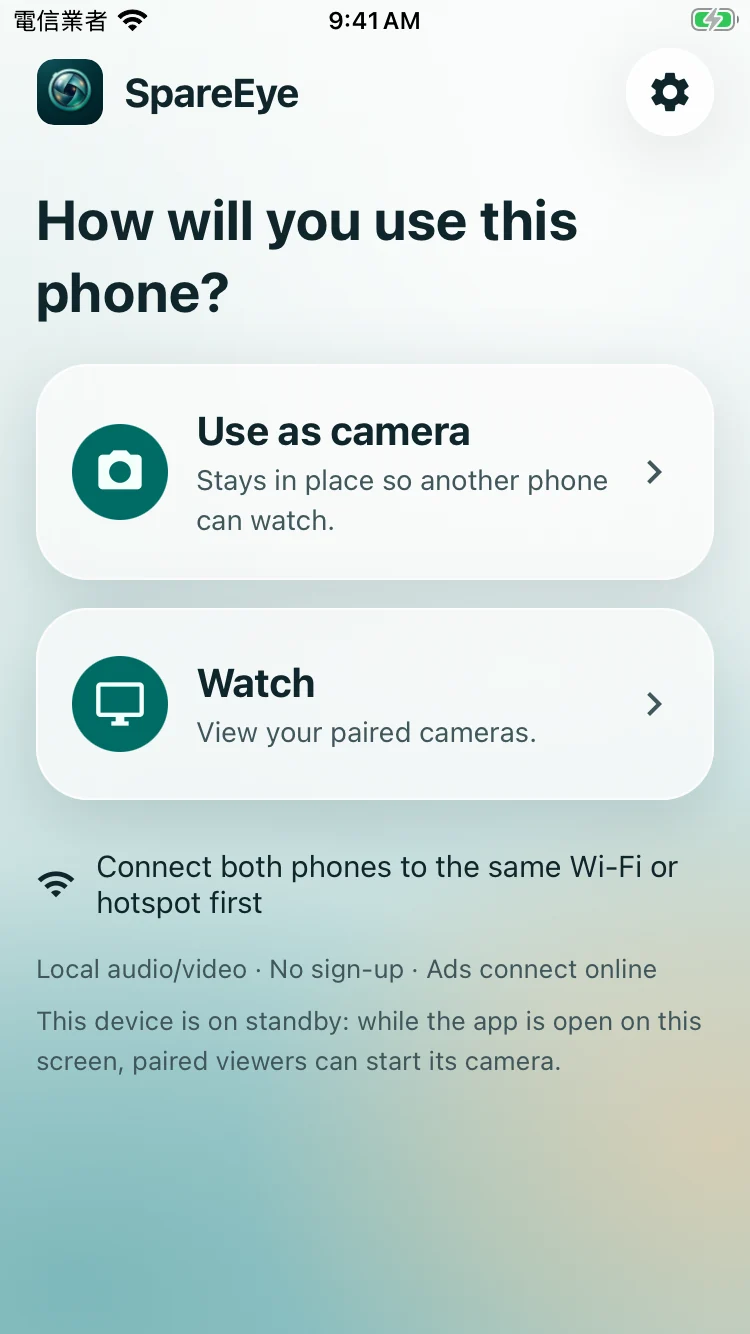
Choose camera and viewer
2. Choose Camera on one device and Viewer on the other. Allow camera, microphone and local-network access as needed; denying a permission disables the related feature.
Find the camera and pair
3. On the viewer, select a nearby camera or scan its QR code. Enter the six digits shown on the viewer into the camera device. Keep both devices with you and approve only devices you recognize.
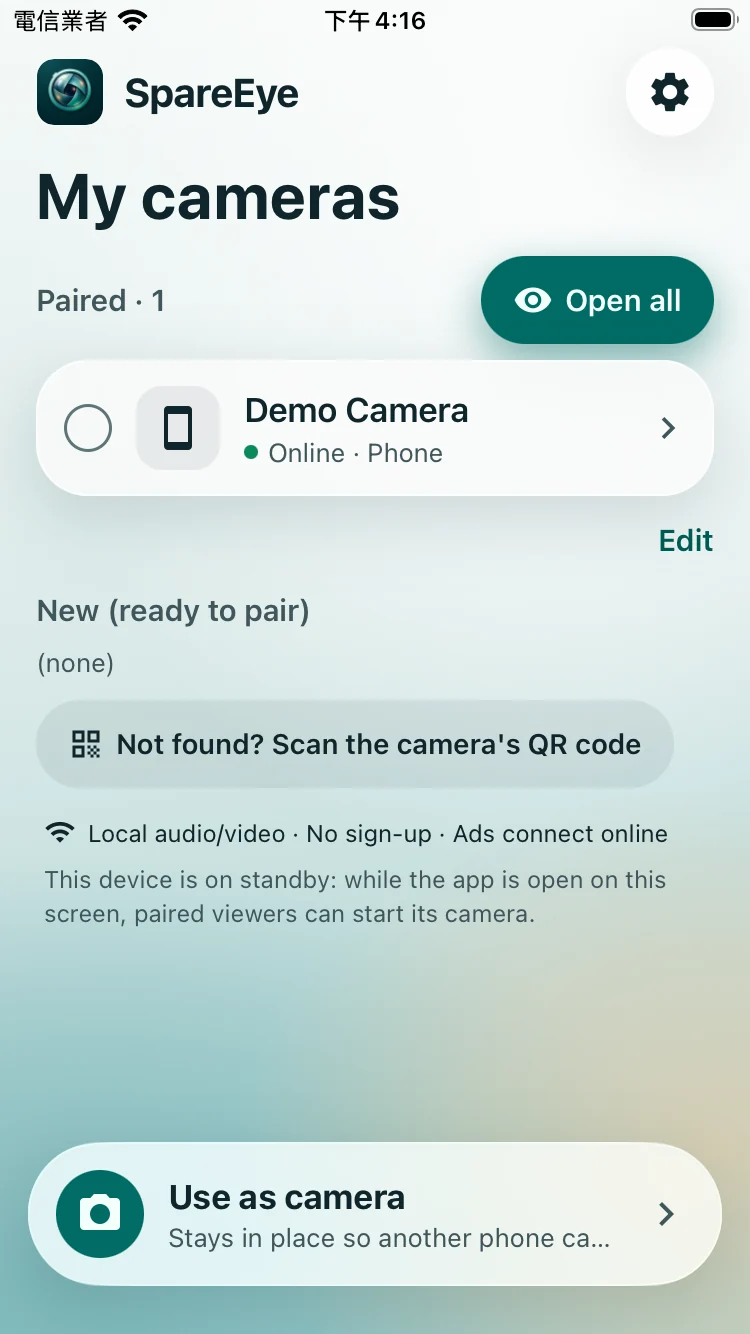
Open the view and check
4. After pairing, open the view. Check that the picture updates, audio is set as intended, and the camera shows the expected viewer count. Paired devices save a key, so later viewing does not require a new code each time.
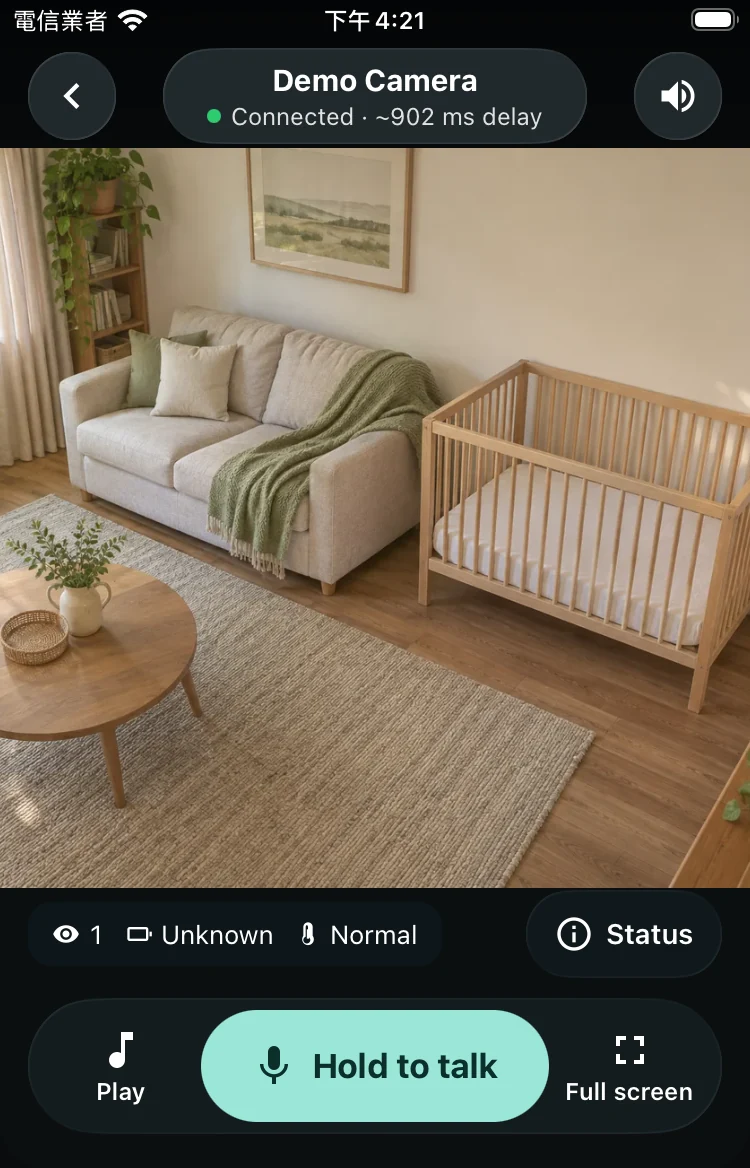
Three everyday uses
At home: put a supported older phone on a stable, ventilated stand facing the room or pet. Join home Wi-Fi on both devices. Plug in for long sessions, keep cables away from children, and keep the phone off beds and blankets.
In a hotel: try the same Wi-Fi first. If discovery or connection fails, guest isolation may be the cause; use your own hotspot with a strong password. Point the camera only at areas you may lawfully monitor, not corridors, nearby rooms or others’ private spaces.
In a car: while parked, share a hotspot and connect the other device. Secure the camera facing the back seat for a passenger to view. Keep sight lines, airbags and controls clear. Drivers must not operate or watch the app while driving. Never leave a child alone in the car.
Everyday controls
Sound playback: open Play on the viewer, check the target camera name, and choose noise, nature sounds or soothing music. All are free and play on the camera device. You can pause, resume, stop, adjust volume and set a 15/30/60-minute timer or no timer. The selected sound loops; automatic rotation through multiple tracks is not available. Select another track manually. Start quietly; if silent, check the camera’s system volume too.
Talkback and status: hold Talk to transmit and release to stop; a brief tap can leave talkback on until you tap again. Check the talking indicator. The microphone stream may remain until you leave viewing; stopping transmission does not necessarily release the microphone. Separate the devices to avoid feedback. Status shows connection, battery, charging and camera state; these are reported readings, not continuous care or danger detection.
Standby and auto-off: when nobody watches, the camera can return to the home screen after the chosen delay, and a paired viewer can wake it. Keep the app in the foreground on iPhone/iPad; Android background wake also depends on system limits. On battery with no viewers, auto-off can be set to 30 minutes, 1/2/4/8 hours or Never; the default is 1 hour. Time starts when the last viewer leaves. Charging suppresses shutdown but unplugging does not reset the clock, so an expired timer can stop service soon after unplugging. This stops the app’s camera, microphone and LAN services, not the phone itself. Restart on the camera device. Suspended iOS apps check the deadline when foregrounded.
Unpairing: remove the camera on the viewer, or remove the viewer under the camera’s Settings → Devices allowed to view this device. If the other device is offline, a one-sided removal does not confirm removal at both ends. If concerned, stop the camera and remove the pairing on both devices. Version 0.5.8 keeps a pending revocation notice until signed acknowledgement or re-pairing; it does not expire after 30 days. Other pairings and settings remain.
Remove ads and restore: the only planned purchase is Remove ads, a one-time NT$90 purchase in Taiwan, not a subscription. All sounds and music are free. Version 0.5.8 has no purchase/restore entry yet. When offered in 0.5.9, use the original store and account and the app’s restore entry to recover eligibility; purchases do not automatically transfer between stores. The store confirmation gives the actual price and availability. Purchasing does not automatically disable usage analytics.
Why can’t I connect?
Update both devices to the same latest available version. Check the camera is on, the network allows communication, and camera/local-network permissions are allowed. Move closer to the router, foreground the app and reconnect Wi-Fi or hotspot. Try scanning the camera QR code if discovery fails. If needed, copy diagnostics, remove names, addresses and anything private, and email support; never send pairing codes.
Why does hotel Wi-Fi fail?
In a hotel: try the same Wi-Fi first. If discovery or connection fails, guest isolation may be the cause; use your own hotspot with a strong password. Point the camera only at areas you may lawfully monitor, not corridors, nearby rooms or others’ private spaces.
Can I use a hotspot?
Yes. Share a personal hotspot, join it from the other device, then pair; no separate router is needed. Media stays local, but ads and other services may use mobile data. Device, carrier or power-saving settings may limit hotspot communication, so not every combination will work. Keep the devices close and test before extended use.
Why does it drain power or stop?
Standby and auto-off: when nobody watches, the camera can return to the home screen after the chosen delay, and a paired viewer can wake it. Keep the app in the foreground on iPhone/iPad; Android background wake also depends on system limits. On battery with no viewers, auto-off can be set to 30 minutes, 1/2/4/8 hours or Never; the default is 1 hour. Time starts when the last viewer leaves. Charging suppresses shutdown but unplugging does not reset the clock, so an expired timer can stop service soon after unplugging. This stops the app’s camera, microphone and LAN services, not the phone itself. Restart on the camera device. Suspended iOS apps check the deadline when foregrounded.
If disconnected, the image may freeze, go black or show Connecting, and audio may stop. This does not mean nothing is happening. Check the person needing care in person first, then check power, Wi-Fi/hotspot, permissions and foreground state on both devices. Return within signal range and reconnect. There is no cloud recording to replay and no automatic emergency call. Regularly check that the image really updates.
Does it record or store media?
There is no built-in recording, media upload or cloud replay. We cannot retrieve footage missed during a disconnection. The OS, screenshots or other software may still capture media; SpareEye cannot prevent that. Pair only with devices you trust.
How do I unpair?
Unpairing: remove the camera on the viewer, or remove the viewer under the camera’s Settings → Devices allowed to view this device. If the other device is offline, a one-sided removal does not confirm removal at both ends. If concerned, stop the camera and remove the pairing on both devices. Version 0.5.8 keeps a pending revocation notice until signed acknowledgement or re-pairing; it does not expire after 30 days. Other pairings and settings remain.
Sounds, ads and restoring purchases?
Remove ads and restore: the only planned purchase is Remove ads, a one-time NT$90 purchase in Taiwan, not a subscription. All sounds and music are free. Version 0.5.8 has no purchase/restore entry yet. When offered in 0.5.9, use the original store and account and the app’s restore entry to recover eligibility; purchases do not automatically transfer between stores. The store confirmation gives the actual price and availability. Purchasing does not automatically disable usage analytics.
Supported devices? Windows?
| Device | Minimum requirements and limits |
|---|---|
| Android phones/tablets | Android 7.0 or later (API 24). There is no single oldest model across brands. OS, camera and network capabilities must qualify; Google Play determines installation eligibility. |
| iPhone/iPad | The current candidate requires iOS/iPadOS 16.4 or later. Oldest supported families: iPhone 8/8 Plus/X (SE: 2nd generation or later), iPad 5th generation, iPad mini 5th generation, iPad Air 3rd generation and all iPad Pro generations, updated to 16.4 or later. iPhone 6s, 7 and first-generation SE on iOS 15 are currently unsupported. |
| Mac | Apple silicon (M1 or later), using the iPad app from the Mac App Store. The system baseline corresponding to the current iOS 16.4 candidate is macOS Ventura 13.3 or later. Apple calculates requirements from the build; follow the store if it requires a higher version. Intel Macs are unsupported. There is no Windows app or browser viewer; this website provides documents only. |
| Requirements | The camera device needs a working camera; audio/talkback needs microphones. Both devices need a reachable Wi-Fi or hotspot connection. Meeting the minimum OS does not mean every older device will run smoothly for long sessions. Test video, heat and connection first; store regional and compatibility limits still apply. |
Precautions
Placement, care and disconnections
Placement and care: secure the phone and leave ventilation space. Keep it away from water, direct sun, blankets, beds and cables within a child’s reach. Stop using it if unusually hot or the battery appears faulty. Plug in for long use and check regularly; power does not prevent heat or disconnections. Play soothing music quietly; it has no promised medical effect. SpareEye cannot replace adult care, emergency alerts, medical monitoring or professional security. Keep a way to check in person.
In a car: while parked, share a hotspot and connect the other device. Secure the camera facing the back seat for a passenger to view. Keep sight lines, airbags and controls clear. Drivers must not operate or watch the app while driving. Never leave a child alone in the car.
Respect privacy: monitor only areas you are entitled to view, and give notice or obtain consent as local law requires, especially in hotels, public and shared spaces. Avoid bathrooms, changing areas, neighbours and others’ private spaces. Owning or pairing a phone does not authorize secret recording, eavesdropping or sharing others’ images.
If disconnected, the image may freeze, go black or show Connecting, and audio may stop. This does not mean nothing is happening. Check the person needing care in person first, then check power, Wi-Fi/hotspot, permissions and foreground state on both devices. Return within signal range and reconnect. There is no cloud recording to replay and no automatic emergency call. Regularly check that the image really updates.
Information security
Our security measures
Layer 1, the network: viewing and connection negotiation are designed for the LAN, with no external TURN media relay or automatic UPnP router port opening. With typical home settings, outsiders usually need access to the same Wi-Fi or hotspot to reach it. Do not expose or forward ports. Strangers already share public Wi-Fi, so this layer cannot exclude them; the next two layers still matter. Prefer your own hotspot outside and strong passwords for both home Wi-Fi and hotspot. VPNs, routing and forwarding can change reachability; a network name alone is no security assurance.
Layer 2, pairing: finding a camera on the same network is not enough to watch without a pairing code or an existing key. Each new pairing generates a fresh random six-digit code, invalid after that pairing succeeds. The code does not yet rotate every 60 seconds while waiting. Three incorrect entries lock the attempt; wait and start again. Do not share the code. It is not a permanent password; previously paired devices reconnect with a saved key.
Layer 3, encryption and authentication: media is encrypted throughout transit between devices by WebRTC DTLS-SRTP, so intercepted media is not directly readable. Control commands use pairing-key signatures to check authenticity and changes, with one-time challenges or duplicate checks to reduce replay of old commands. Some control, negotiation and status traffic still uses local HTTP. Signatures do not conceal content; people on the network may see names and connection information. These measures cannot prevent every vulnerability or disconnection and do not mean all network data is encrypted.
Watch the viewers: the camera displays the number watching and device names. Names can be changed and do not prove identity. If an unfamiliar viewer appears, stop the camera and remove the relevant pairing on both devices. You can unpair at any time using the steps above.
Limits of protection
Limits and your part: these measures protect local connections and viewing permissions. They cannot secure a phone taken and unlocked by someone else or infected with malware, undo a shared pairing code, or eliminate other public-Wi-Fi risks and OS/router vulnerabilities. Use strong Wi-Fi/hotspot passwords and a screen lock. Update the app, OS and router, keep pairing and QR codes private, avoid personal names or room numbers in device names, and check the viewer count. If concerned, stop the camera, revoke pairing and inspect the devices and network.
Official app and contact
Get the official app from Apple App Store, Mac App Store (iPad version) or Google Play. Check the developer is 巷口數位科技股份有限公司 / GO LOCAL DIGITAL TECHNOLOGY CO., LTD. Availability depends on region and release status. Avoid unknown modified copies and never give pairing codes to someone claiming to be support. There is no verified in-app authenticity badge; an icon or name alone proves nothing. Contact support@golocalnear.com if unsure.